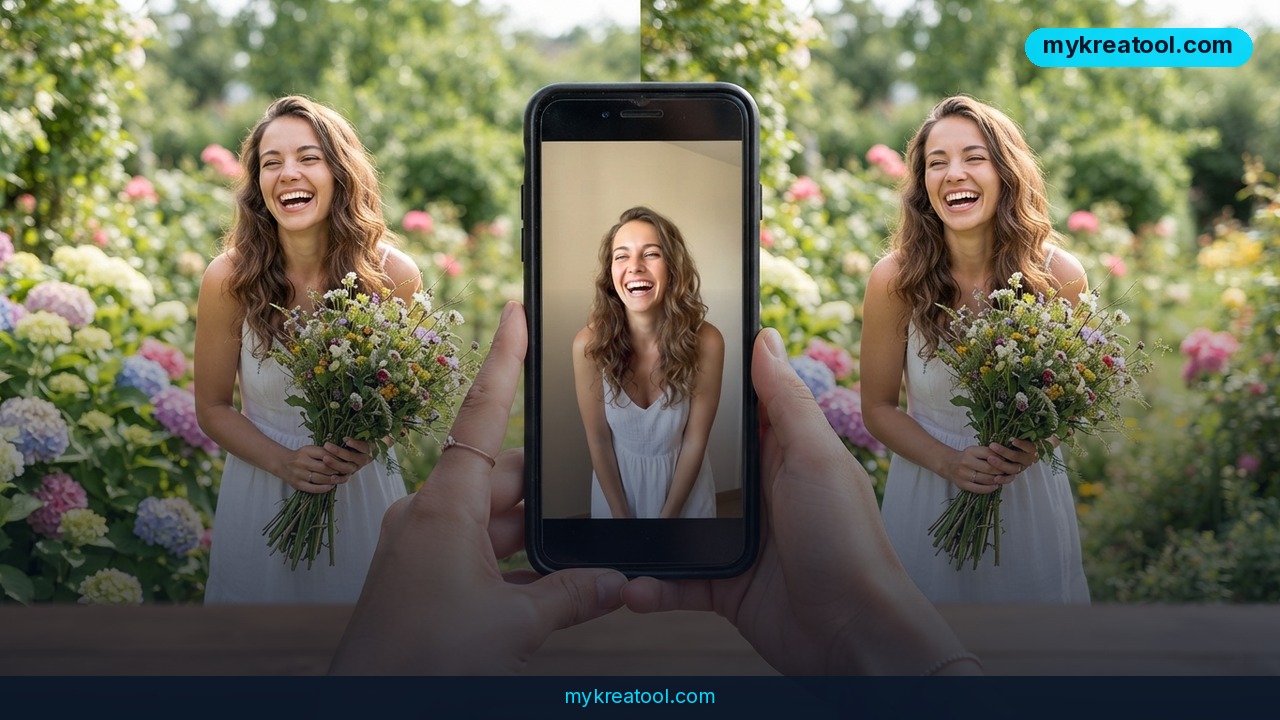
If you've ever shot something great on your phone and then watched a different platform chop it to pieces, you know exactly what Reframe is for. Fal has released a new AI video reframing tool that changes the shape of a clip instead of cropping it: feed it a tall 9:16 video, ask for a wide 16:9 result, and the model invents fresh pixels for the empty space on either side. Your original footage, its timing, and its audio track come through untouched — only the new edges are generated.
What happened
Reframe lives on Fal's model hub under the name minimax/h3-max/reframe-video, and the pitch is refreshingly narrow. It does one thing, and that one thing is changing a video's aspect ratio. Aspect ratio is just the shape of the frame — width compared to height. The 9:16 shape is the tall rectangle you scroll past on TikTok, Reels and Shorts. The 16:9 shape is the wide one you watch on YouTube, Netflix and your TV. Those two shapes don't convert into each other, so people usually pick between two bad options: crop half the picture away, or park the video between two fat black bars.
The launch news came through the @cgevent Telegram channel, which tracks new AI tools for the people building with them — a small but engaged audience for something this practical.
Outpainting, explained without the jargon
The trick behind Reframe is called outpainting. Picture a painter who's just finished a portrait, and then the client says: great, now make it a landscape. A good painter doesn't repaint the face. They add sky, trees and street on both sides until the canvas is wide enough. Reframe does the same thing with video — it studies the frames it already has, works out what plausibly continues past the left and right edges, and renders those strips as moving footage that blends into the original.
Here's the part that makes it more than a gimmick: you get to describe what should appear in the new space. Reframe accepts a prompt, so you can ask for a city street at night or a softly blurred office background, and it aims for that while it fills the gap.
The specs, straight from the documentation
• Source clip length: from a quarter of a second up to five minutes.
• Output resolution: 480p, 768p or 1080p.
• Output aspect ratios: 16:9, 4:3, 1:1, 3:4 and 9:16, plus the extra-wide and extra-tall cinema options the documentation lists.
• Prompt: optional text describing what belongs in the added area.
• What's preserved: the original footage, its timing, and the audio track.
The ratio list is wider than most people expect. It's not just vertical-to-horizontal — the same tool can turn a square 1:1 post into a tall story-format clip, or reshape a widescreen video into an older television 4:3 frame.
Why the speed claim holds up
Fal's own framing is seconds, not hours. There's no render farm and no timeline scrubbing involved: you hand over a clip, describe the missing area, and the model hands back a finished file. Independent write-ups covering the launch — like this breakdown of Reframe and H3 Max outpainting — confirm both the functionality and the documented parameters, so this isn't a rumour doing the rounds. It's a shipped model with public specs.
What it means for you
You don't need to be a video editor to get value out of this. If you can drag a file into a browser, you're qualified.
At home: rescuing clips stuck in your camera roll
Everyone has that one video — a kid's first steps, a concert, a dog doing something ridiculous — shot vertically because that's how phones are held. On a phone it looks fine. On a laptop or TV it looks absurd. Reframe lets you widen it to 16:9 and keep the whole picture, instead of cutting off the top of someone's head to make it fit. It's the kind of fix you do once and then wonder why it took you this long to look for it.
At work: one recording, every channel
You record a team update or a product demo. Marketing wants it square for a newsletter, sales wants it wide for the website, social wants it vertical for Reels. Historically that meant several exports and a fair bit of arguing. Now it's the same source file, run several times with a different target ratio each time, and the audio and timing stay locked to the original. Your original cut stays exactly as you approved it; you're just getting extra versions out of the same source.
If you run a business: squeezing more from ad creative
Ad creative is expensive to shoot and cheap to reuse. A vertical ad that performs well on TikTok can become a 16:9 YouTube pre-roll without a reshoot — and the prompt field means the added space can match your brand's world, whether that's a warehouse, a salon or a café counter. Before you spend anything on tools, it's worth browsing the free AI utilities collected at mykreatool.com to handle the trimming and captioning work around it.
For students and teachers
Class presentations, lecture recordings, group projects — they all get recorded on whatever device is closest. If a student films a presentation vertically and it has to go into a slide deck, Reframe saves the awkward re-record. The five-minute ceiling actually suits this well: most explainer clips and project demos are shorter than that anyway.
For creators: a second life for old content
This is the scenario with the clearest money attached. Most creators have a back catalogue shot vertically. Every one of those clips is a 16:9 video you never made. Rather than filming again, you can widen the old ones and publish to a platform you'd previously written off — same footage, same audio, new audience.
For anyone selling a service
If you sell editing, subtitling or social media management, aspect-ratio conversion is the chore clients ask for constantly and rarely want to pay much for. A tool that does it in seconds changes the maths on those jobs, because the time you used to spend on manual cropping goes somewhere more profitable.
How to try it right now
Free option first. Before you touch anything paid, do the free prep work: open your camera roll, pick the clip you want to convert, and trim it so it lands inside the documented window — from a quarter of a second up to five minutes. Anything longer won't go through. Free mobile editors or the free tools listed at mykreatool.com handle the trimming perfectly well, and getting the clip right first saves you a wasted run.
Then run Reframe.
1. Go to the model page: Fal Reframe (minimax/h3-max/reframe-video).
2. Sign in to Fal and open the model in the playground, or wire the endpoint into your own app if you're technical.
3. Upload your clip — remember the clip-length window: a quarter of a second at the shortest, five minutes at the longest.
4. Choose your target aspect ratio. The everyday picks are 16:9, 4:3, 1:1, 3:4 and 9:16, and the documentation also lists wider and taller options if you need them.
5. Choose your output resolution: 480p, 768p or 1080p. Start at 480p while you're experimenting, then re-run your favourite take at 1080p.
6. Write the prompt. Describe what should exist in the newly added area — a wall, a street, sky, a blurred interior. Plain, specific descriptions work better than clever ones.
7. Run it, preview the result, and download. Check the seams where the generated strips meet your real footage before you publish.
Upsides and what changes
• Nothing gets lost. Cropping steals pixels from your shot. Outpainting adds pixels around it, so the framing you chose when you filmed stays intact.
• Audio and timing are frozen. The original soundtrack and the rhythm of the edit come through unchanged, which means no re-syncing and no re-editing.
• One tool, every shape. It covers social, widescreen, square and vertical formats instead of a pile of separate workarounds.
• Prompt control. Generic AI fills tend to look generic. Telling the model what belongs in the gap makes the result look deliberate rather than patched.
• Short clips are the sweet spot. With a five-minute maximum, this is built for social content, ads and demos — which is exactly where aspect-ratio pain shows up most.
Limitations
Be clear-eyed about what this is. It's not a magic wand for a badly shot video — it widens the frame, it doesn't fix shaky footage, muffled audio or bad lighting. The five-minute ceiling rules out long interviews, webinars and full podcast episodes unless you cut them down first. Output tops out at 1080p, so this isn't a route to cinema-grade masters. And because the added strips are generated rather than filmed, they can occasionally look slightly soft or logically odd next to your real footage — which is exactly why the prompt field exists and why you should eyeball the seams, especially if a person or object sits right at the edge of the original frame. Treat the first run as a draft, not a final cut.
Conclusion
Reframe is a small, focused tool solving a problem that nearly every person with a phone camera runs into: the wrong shape. It takes a vertical 9:16 clip, generates new content on the sides, and hands back a 16:9 video with the original footage, timing and audio untouched. Clips can run from a quarter of a second up to five minutes, output comes in 480p, 768p or 1080p, and there's a long menu of target shapes to pick from. No reshoots, no black bars, no chopped-off heads.
One action for today: open your camera roll, pick a single vertical clip under five minutes, and run it through Reframe on Fal with a simple prompt describing what should fill the empty space. You'll know within minutes whether your back catalogue just became a second publishing channel.


Comments 0