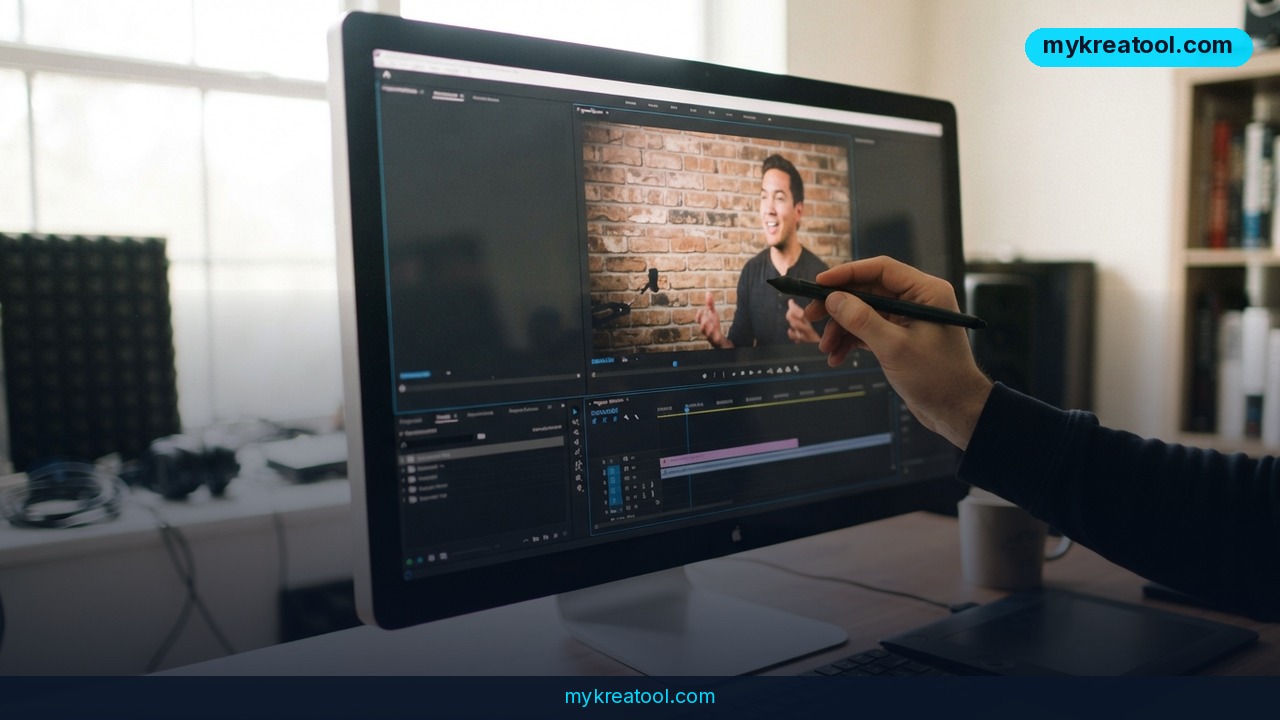
There's a new button in Premiere Pro's beta build, and it makes boom mics, light stands and random passers-by vanish from your footage. Adobe calls it Generative Remove, and it's the first time you can properly remove objects from video without leaving the editing app — no round trip to After Effects, no third-party cleanup plugin, no hand-drawn masks frame by frame.
What happened
Adobe has shipped Generative Remove into the Premiere Pro beta, and the whole point is speed. You mark something you don't want, you press a button, and the AI rebuilds the background behind it. The company says the work happens right inside the Program Monitor — the window where you actually watch your edit play back.
That's a bigger change than it sounds. Cleanup work used to be the part of an edit that ate an afternoon: a pole in the corner of a shot, a logo on someone's hoodie, a light stand you couldn't move on the day. You'd either live with it or hand the clip to a compositor.
How the tool actually works (in plain words)
You select the object with Object Mask or by drawing a vector shape — a kind of freehand outline you place over whatever you want gone. You then let the built-in tracker follow that selection through the clip, so you don't have to redo the mask on every frame. When you hit Remove, the generative model paints a matching background in its place.
One detail matters more than any other: drag your selection wide enough to swallow the shadow and the reflection that come with the object. Those two things are what give a bad cleanup away.
The processing runs in the background on Adobe's Firefly cloud, so your timeline keeps playing and you keep editing while it works. Nothing gets baked in, either. The clip picks up a small AI badge, and from that badge you can regenerate the result, adjust the mask edges, or snap straight back to the original footage. In the current beta you can also remove several objects at once, each with its own separate mask.
What it means for you
Think of it as the healing brush in Photoshop, except it works on moving pictures and it chases the object around the frame by itself. That's the entire mental model, and it's why the feature is going to show up in places Adobe probably didn't plan for.
At home: cleaning up family video
Your kid's birthday video has a phone charger cable snaking across the table and a takeaway bag in the background. Two masks, two clicks, and the shot looks like you tidied up first. Same trick works for the dog that wandered into the frame, or the recycling bin you forgot to move.
At work: meeting recordings and product demos
Screen recordings and internal walkthroughs are full of visual noise — a colleague's face in the background, a whiteboard covered in old notes, a second monitor showing something confidential. Blurring those out looks cheap. Removing them looks like you planned the shoot.
For business: ads and brand safety
If you shoot product footage in a real location, you're constantly fighting other people's branding. A competitor's logo on a gym shirt, a shop sign, a sticker on a laptop lid. Generative Remove lets a small team deliver clean, on-brand footage without booking a studio. It also means fewer reshoots, which is the real budget line.
For study: presentations and class projects
Student films and lecture videos usually get made in borrowed rooms with whatever's lying around. Being able to wipe a fire exit sign or a stack of chairs out of the background levels the field a little — the focus goes back to what's being said.
For creativity: short films and skits
This is where it gets fun. Practical effects become cheaper: hide a crew member, hide a rig, hide the fact that your "forest" is a park behind a supermarket. The generative fill isn't a locked-in decision either, so you can keep regenerating until the background looks right.
For income: freelance editing gigs
Clients rarely ask for object removal by name, but they notice it. Being able to say yes to "can you get the mic out of the shot?" without subcontracted VFX work is a sellable skill, and it's the kind of thing that turns a one-off job into a repeat client. If you want to warm up on smaller tasks before you commit to an editing suite, the free utilities at MyKreaTool are a low-stakes place to start.
How to try it right now
Start with the free option: watch the official demo video to see the workflow end to end before you install anything. Then grab the beta itself.
1. Install the beta. Open the Creative Cloud desktop app, go to the Beta apps section, and install Adobe Premiere Pro (Beta). It sits alongside your regular copy, so nothing gets overwritten.
2. Pick a clip that fits the beta rules. Ten seconds or shorter, between 480p and 1080p, SDR (standard dynamic range, i.e. not HDR), 30 frames per second or less, encoded as H.264 or HEVC.
3. Make the selection. Park the playhead, then use Object Mask or draw a vector shape over the thing you want gone. Include the shadow and any reflection — trust this step.
4. Let the tracker run. Premiere follows your selection to the end of the clip automatically.
5. Hit Remove. The render happens in the Firefly cloud in the background, so you can keep editing.
6. Check the AI badge. Don't like the result? Regenerate it, nudge the mask, or revert to the untouched clip.
7. Follow the walkthrough in Adobe's help doc if a mask isn't behaving, and check the Reddit thread for what other editors are running into.
Upsides and what changes
Three things stand out. First, speed — the tedious part of cleanup (tracking a mask across hundreds of frames) is now the software's job. Second, location — staying inside Premiere means no exporting, no relinking, no version confusion between apps. Third, reversibility — because the edit is non-destructive, trying something bold costs you a few seconds and nothing else.
Bundled together, those three things change who gets to do this work. Object removal stops being a specialist service and becomes a checkbox in an ordinary edit.
Limitations
Here's the honest version. The beta is strict: clips must be 10 seconds or shorter, between 480p and 1080p, SDR only, at 30 fps or lower, in H.264 or HEVC. HDR and 10-bit color aren't supported yet, so anyone shooting log footage or delivering HDR will have to wait or work around it. Every generation also spends Firefly generative credits, which means the feature isn't unlimited even while it's free to try — burn through credits and you're waiting or paying. And no generative model is perfect: complex motion, busy textures and objects that cross in front of faces are exactly where you should expect to regenerate a few times, which uses more credits.
Conclusion
Generative Remove is Adobe admitting that most "VFX" problems in everyday video are really just clutter — a mic, a stand, a stranger, a logo — and that clutter shouldn't cost a day of work. It's in beta, it's capped at short clips in SDR, and it drinks Firefly credits, but the workflow is already the one you'd want.
One thing to do today: open Premiere Pro Beta and run a single 10-second test clip through Generative Remove — no client work, no deadline — so you know exactly how the mask and the tracker behave before a real project depends on them.


Comments 0