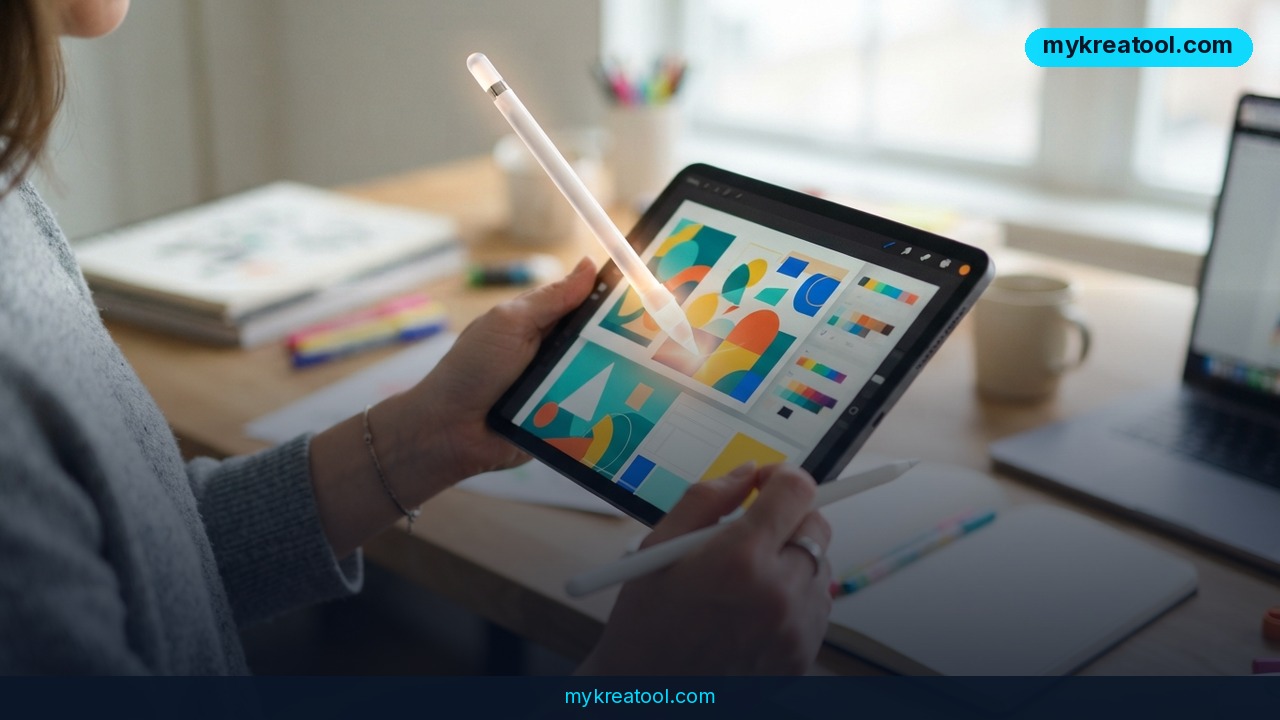
Canva Brush is an AI agent inside Canva that redraws a whole layout when you describe the change in plain English — and Canva is pitching the turnaround in seconds, not an afternoon of nudging boxes around. Ask it to tighten one line of text or to rebuild an entire presentation in a different style, and it works on the design itself instead of handing you back a flattened picture.
What happened
Canva announced Brush, a feature that reads a design the way a designer does: where each element sits, which layer it's on, what the text actually says, which colors are in play, and how the whole composition holds together. That's the part most AI image tools skip entirely.
Here's the analogy that makes it click. Most AI image generators bake you a cake — you get a photo of a cake, and if you want a different frosting you have to bake a new one. Brush hands you the recipe and the ingredients, still separate: the text is still text, the shapes are still shapes, and you can go in and change any of them by hand afterward.
Canva calls this semi-procedural editing. In plain terms, the AI changes the structure of the design rather than smearing pixels over the top of it.
It's an agent, not a one-shot button
The more interesting detail is how it works underneath. Brush is an agent: the model writes code, runs it, changes design elements, looks at the result, and fixes its own mistakes in a loop until the layout matches what you asked for. That loop is why it can handle multi-step requests — "fix this one line, then make the whole deck feel calmer" — instead of one isolated tweak.
Canva says the tool runs on one of the leading open-weight models, fine-tuned on design tasks and sharpened with reinforcement learning (a training method where the model gets rewarded for better outcomes). Which model? Canva isn't saying. That's the one genuinely annoying gap in the announcement.
Brush is available to Canva Pro subscribers through Canva AI, and you can read the official newsroom post here.
What it means for you
You don't need to care about layers or reinforcement learning to care about this. What matters is that the boring part of design work — resizing, restyling, reformatting the same thing five times — is exactly what an agent like this is good at. Here's what that looks like in practice.
At home: one invitation, three sizes
You've made a birthday invite you actually like. Now it needs to work as a square post, a phone-sized story, and a printed card. Normally that's three rounds of dragging text boxes until nothing overlaps. With Brush, you describe the target format and let it rework the layout while keeping your colors, fonts, and wording intact — and if one headline lands awkwardly, you fix that single line by hand afterward.
At work: the 40-slide deck that needs a new look
Someone senior decides the presentation template is "too corporate" the day before the meeting. Instead of rebuilding 40 slides, you ask for a full style change and review what comes back. The slides stay editable, so you can still step in on the two or three where the AI misread your intent.
For a small business: a menu, a poster, a story from one layout
The real cost for a one-person shop isn't making a design — it's making the same design eight times for eight channels. Brush's format-adaptation is aimed squarely at that, so a single strong layout becomes the flyer, the social post, and the in-store sign without a redesign each time.
For students: beating the group-project scramble
Group slides usually look like four different people made them, because four different people did. Describing a consistent style across the whole deck is a realistic ask here, and because everything stays editable, you can still fix that one teammate's bullet points that run three lines too long.
For creators and side income: resizing as a service
Freelancers get paid for adaptation work all the time — take the client's hero design, spin out ten variants. That's tedious, low-glory work that an agent handles well, which means you can quote faster and spend your actual hours on the creative calls. If you want to sharpen your prompt-writing before you start, MyKreatorTool has a stack of free AI tools worth poking at first.
How to try it right now
Brush itself sits behind Canva Pro, so start free and upgrade only once you know you want it.
1. Free option first: create a free Canva account and open Canva AI to get a feel for prompt-based editing. You won't get Brush on the free plan, but you'll learn how Canva's AI panel behaves before you pay for anything.
2. Upgrade to Canva Pro when you're ready — Brush is delivered through Canva AI for Pro subscribers.
3. Duplicate a design you already have. Never experiment on the only copy of anything that matters.
4. Open Canva AI and reach Brush. Type your request the way you'd brief a junior designer: name the element, name the change, name the constraint. "Make the headline shorter and keep the same font" beats "fix the text."
5. Ask for one change at a time on the first pass. Multi-step prompts work, but you'll spot problems faster when you can see which step caused them.
6. Try a format swap. Take a finished layout and ask Brush to adapt it to a different size or aspect ratio — that's the feature most people will get the most daily mileage out of.
7. Check the announcement for the current feature list and any rollout details before you build a workflow around it.
Upsides and what changes
The biggest upside is that nothing gets destroyed. You get AI-speed editing without losing the ability to open the file and move a box three pixels to the left like a normal human being. Most AI design tools trade control for speed; this one is trying not to make you choose.
Second, multi-step editing is genuinely different from one-shot generation. Fixing a line, then restyling a deck, then adapting the format are three separate jobs, and having one tool that can chain them means fewer copy-paste round trips between apps.
Third, the skill floor drops without the skill ceiling collapsing. Someone with no design training can get a decent result fast. Someone with training can get there faster and still apply their judgment at the end.
Finally, there's an independent write-up of the launch at OrcaRouter if you want a second angle on the technical side.
Limitations
Let's be honest about what isn't here. Brush is a paid feature — Canva Pro subscribers only, no free tier for the agent itself, so anyone on the free plan is reading about it, not using it. Canva hasn't named the open-weight model underneath or published any accuracy benchmarks, which makes it hard to judge how reliably it handles complex, multi-step requests beyond the demos. Agents that write and run code can also produce confidently wrong results — a layout that technically follows your instructions and still looks off — so you'll want to review output rather than ship it blind. There's no public word yet on how it handles strict brand guidelines or locked templates. And since this is a launch announcement, treat the "seconds" framing as a claim until you've run it on your own messy, real-world file.
Conclusion
Canva Brush is a meaningful shift rather than another AI button: an agent that understands design structure, edits it in a loop, and leaves every element editable when it's done. The paywall and the unnamed model are real caveats, but the core idea — describe the change, keep the control — is the direction design tools should be heading.
One thing to do today: open Canva, duplicate a design you've been meaning to resize, and run a single clear prompt through Canva AI. Even on the free plan, that one experiment will tell you more about whether Brush is worth a Pro subscription than any announcement will.

Comments 0