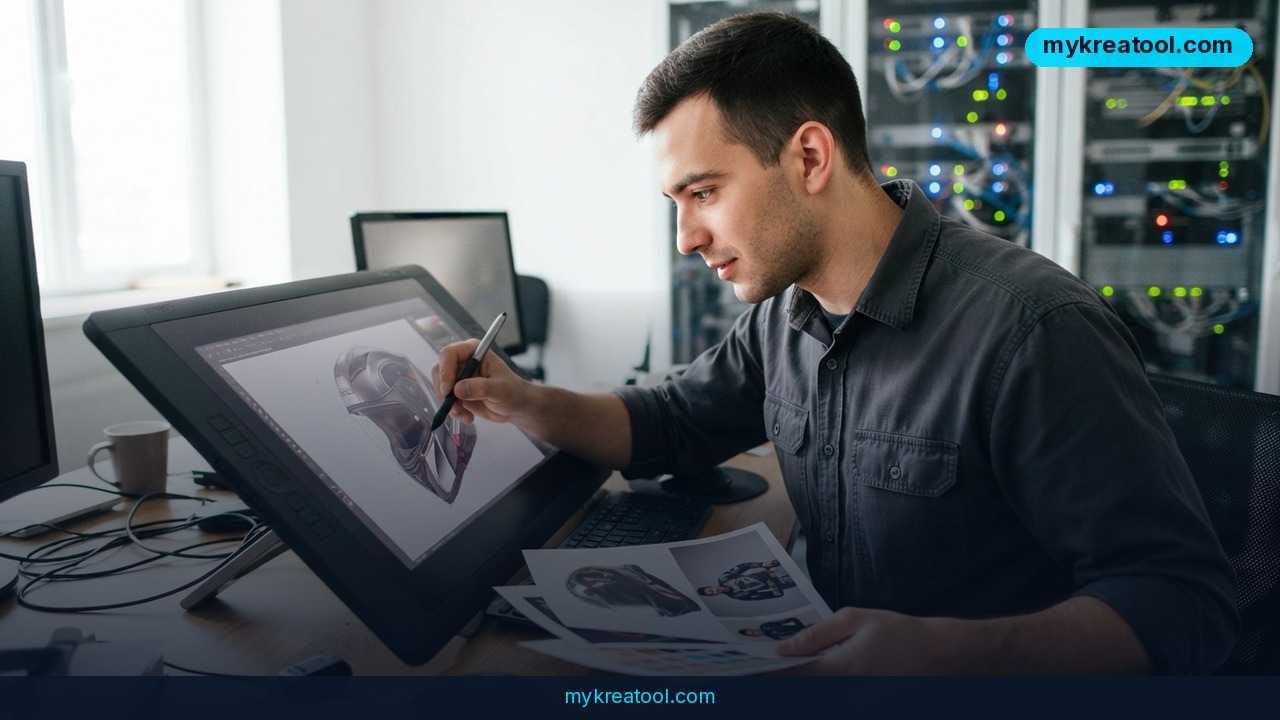
Krea 3 has landed, and the pitch is refreshingly blunt: edit a photo in under 8 seconds without trashing the rest of the frame. The official announcement hangs on three ideas — surgical editing, keeping the original composition intact, and speed. If you've ever burned an hour in Photoshop just to swap a logo on a product shot, that's a promise worth checking.
What happened
Krea shipped the third generation of its image model, and it's built around editing rather than generating from a blank canvas. Instead of "type a prompt and pray," the new tool assumes you already have an image and want to change one specific thing about it. Here's the plain-English version of everything in the feature list.
Regional Editing: change one thing, leave the rest alone
You draw a box around the part of the photo you want to change. Think of it like highlighting one sentence in a document before you rewrite it — the rest of the page stays untouched. Krea recalculates mostly inside that box, and the bounding boxes are visible right in the interface, which makes it feel more like a design tool than a slot machine. The team's demo swaps a helmet while everything around it stays exactly where it was.
Precise Mode: the pixels outside your edit don't move
This is the "don't touch anything I didn't ask about" switch. Without it, AI edits tend to leak — you change a jacket and suddenly the face shifts a hair, the background drifts, the light changes. Precise Mode freezes the pixels outside your selection. If you've used Flux or Ideogram, you already know why that matters.
Multi-reference Editing: up to 8 references in the API
You can pull objects, characters and styles from several images at once. The API takes up to 8 reference images, though the first public announcement mentioned 6 — a small gap worth knowing if you're building on top of it.
Character Consistency and Product Consistency
Character Consistency keeps a face looking like the same person when you change the pose, the outfit, the camera angle or the surroundings. Product Consistency does the same job for geometry, packaging, logos and labels. In practice, that's the difference between "a guy in a red jacket" and "your guy in a red jacket."
Text Editing and HEX Color Control
Text Editing lets you rewrite the words inside an image while the layout and styling stay put — updating a price on a mockup label, for example. HEX Color Control goes further and lets you dial specific elements to an exact HEX code instead of saying "make it sort of teal" and hoping for the best.
Sketch-to-Image, Native 2K and Sequential Editing
Sketch-to-Image turns rough drafts, blueprints and collages into photorealistic images. Native 2K means the model outputs 2K straight out of the box, with no upscaling pass bolted on afterward. Sequential Editing lets you stack changes one after another while the earlier results survive: fix the background, then the shirt, then the text, without starting from scratch each time.
If you'd rather warm up on free AI tools before spending a cent, mykreatool.com is a sensible place to start.
What it means for you
At home
That family photo where the background is a mess of dishes and cables? Regional Editing lets you clean up the corner without redrawing everyone's faces. Same deal for swapping the sky or removing a photobomber — one box, one pass.
At work
Marketing teams spend real money rebuilding a banner from scratch just to change the headline text. With Text Editing and Precise Mode, the design survives and only the words change. That's hours back per campaign.
For your business
E-commerce is the obvious winner. One shoe, ten colorways, matched to your brand palette by HEX code. Logos and labels keep their exact geometry instead of coming back slightly warped, which is usually the moment a product photo becomes unusable.
For students
Sketches and hand-drawn diagrams turn into clean, presentation-ready images. If you're building a slide deck about a machine, a building or a circuit, you can rough it out on paper and let the model do the rendering.
For creatives
Storyboards get much easier when your character stays recognizable across 20 panels in different poses, outfits and lighting. You stop explaining who's who and just draw the story.
For extra income
Product mockups, Etsy listing photos, book illustrations and client photo retouching all become faster to deliver. At $0.03 per 1K image, the cost of experimenting barely registers.
How to try it right now
1. Start with the free option. If you don't want to pay to test the waters, begin with free AI tools — mykreatool.com collects a bunch of them in one place. Play with basic edits there until you know what you actually need.
2. Open Krea 3. Head to the Krea 3 announcement page or the Krea Edit blog post to see the current interface and examples.
3. Upload an image you already like. Don't generate from scratch. Pick a photo you'd otherwise take into an editor. The whole point of Krea 3 is that it respects what's already in the frame.
4. Draw a box around the thing you want changed. That's Regional Editing. Keep the selection tight — the smaller the box, the less chance anything else moves.
5. Turn on Precise Mode if the rest of the image has to stay pixel-identical. It's the difference between a clean edit and a "wait, did the lighting change?" edit.
6. Stack your references. Add up to 8 images in the API to pull in a character, an object and a style all at once.
7. Tune the knobs if you're on the API. You've got reasoning_level (low, medium or high), negative_prompt, seed, resolution settings, and PNG or JPEG export. On fal, there are two variants: berry for quality and jam for speed.
8. Watch the meter. Base output runs $0.03 for 1K and $0.06 for 2K. Input references and extra modes may be billed separately, so the final number can land above the sticker price.
Upsides and what changes
The biggest shift is that Krea 3 treats consistency as a first-class feature instead of a lucky accident. Character Consistency and Product Consistency are the two things that actually unlock commercial work — you can ship a 20-image campaign with one recognizable character, or a full product line with unbroken logos. Text Editing and HEX control kill the usual round trip into Photoshop. And the pricing is aggressive enough that you can iterate 30 times for under a dollar. The claimed editing speed is under 8 seconds, which, if it holds up in normal use, turns image editing into something closer to a conversation than a batch job.
Limitations
Let's be honest about the fine print. The 8-second figure is Krea's own number from its own comparison chart, and it'll vary with your reasoning_level, resolution, reference count and whatever's in the queue — treat it as a best case, not a guarantee. That speed comparison against Nano Banana Pro was cut off in the source material, so don't quote a head-to-head you haven't seen in full. Multi-reference support is listed at 8 images in the API but only 6 in the broad announcement, so check the documentation before you architect around a number. HEX Color Control isn't spelled out word-for-word in the official notes, even though precise color and local recoloring clearly exist. And remember that references and extra modes may cost extra on top of the $0.03/$0.06 base rate.
Conclusion
Krea 3 isn't trying to be a better image generator — it's trying to be a faster, more obedient image editor, and the feature list backs that up: regional edits, frozen pixels outside your selection, character and product consistency, native 2K, and a base price of $0.03 for a 1K output. If you make anything visual for a living — or just want your family photos to stop looking like a hostage situation — that's a meaningful upgrade over fighting with a prompt box.
Your one action for today: grab a photo you've been meaning to fix, open Krea 3, draw a box around the single thing that bugs you, and turn on Precise Mode. One box. That's the whole test.
Comments 0